Plenty of HubSpot portals are still running the same workflows someone set up three years ago. Meanwhile HubSpot has added a lot of AI to the platform, and most of it sits unused because nobody has had time to switch it on and connect it to a process.
I'm Mick from DigiKat. We build automation and AI agents around HubSpot for Australian businesses. Here are seven AI automations I'd set up in most portals, ordered roughly from quickest win to most involved. Each one covers what it does, how to set it up and what to watch for.
One caveat before we start. HubSpot gates features by hub and tier, and it changes packaging regularly. I've noted the tier where it matters, but check your own portal and HubSpot's documentation before you plan around a feature.
1. AI-drafted emails, tested properly
What it does: HubSpot's built-in AI can draft subject lines, preview text and body copy in the marketing email editor, and help write sales emails and sequences.
How to set it up:
- Open a marketing email and use the AI assistant to draft from a short brief: who it's for, what you want them to do.
- Generate a few subject line options and run an A/B test (available on Marketing Hub Professional and Enterprise).
- Keep a short brand voice note your team pastes into prompts, so drafts sound like you.
Watch for: generic copy. AI drafts are a starting point. A human edit is what makes them yours.
2. Lead scoring that drives routing
What it does: scores new leads on fit and engagement, then routes them to the right person at the right speed.
How to set it up:
- Build fit and engagement scores in HubSpot's lead scoring tool. Fit covers who they are. Engagement covers what they've done.
- On Marketing Hub or Sales Hub Enterprise, you also get predictive lead scoring, which sets "Likelihood to close" and "Contact priority" properties automatically from your historical data.
- Create a workflow that branches on the score. High priority leads go to a senior rep with an instant notification and a task. Middle leads get a same-day task. The rest go into nurture.
Watch for: scoring on bad data. If lifecycle stages and closed deal outcomes aren't recorded consistently, the scores won't mean much.
3. Call summaries that create the follow-up
What it does: after a call, AI produces the summary and your workflow turns it into next steps, so reps aren't writing notes at 6 pm.
How to set it up:
- With Sales Hub or Service Hub Professional or Enterprise seats, HubSpot can record and transcribe calls and generate an AI call summary on the record. Call recording needs to be set up, and consent to record handled properly.
- Agree a standard for what reps confirm after each call: next step, next date, deal stage.
- Add workflows that create follow-up tasks when a call is logged against an open deal.
- If your meetings happen in Zoom, Teams or Google Meet, a custom integration can pull transcripts in, extract next steps and log a note on the deal.
Watch for: blind trust. Reps should skim and correct the summary. It takes seconds and keeps the record accurate.
4. Enrichment and clean-up on autopilot
What it does: fills gaps in contact and company records and keeps duplicates under control, so every other automation has better data to work with.
How to set it up:
- Use Breeze Intelligence to enrich company and contact records with firmographic data. It runs on HubSpot credits, so check your allowance and set enrichment rules deliberately.
- Review HubSpot's duplicate management suggestions on a regular schedule.
- Use workflows to standardise formats, such as state names, phone numbers and job titles, as records come in.
Watch for: enriching everything. Enrich the records you'll actually act on. I explain why fewer, cleaner fields win in We Deleted 300 Properties From a Client's HubSpot.
5. An AI agent on the front line of support
What it does: answers routine questions on your website chat and other channels, around the clock, and hands complex conversations to a person.
How to set it up:
- HubSpot's Breeze customer agent answers from your knowledge base, website pages and other content you give it. It's available on eligible Professional and Enterprise plans and uses HubSpot credits.
- Before you switch it on, fix the content. Write clear answers to your top questions. The agent can only be as good as what it reads.
- Define handoff rules: billing disputes, complaints and anything sensitive go to a human, with the conversation history attached.
- Make sure every conversation creates or updates the contact in your CRM.
Watch for: going live without testing. Run it internally first and throw your awkward questions at it.
6. Customer health scores and re-engagement
What it does: spots customers who are drifting before they leave and starts a response automatically.
How to set it up:
- Decide which signals matter for your business. Common ones are falling email engagement, no recent meetings, a rise in support tickets and fewer logins or orders.
- Combine them into a health score property using HubSpot's score properties, or calculate it with a custom coded workflow action if you're on Data Hub Professional or above.
- Build tiered workflows. A small drop triggers a check-in from the account manager. A big drop alerts the manager and creates a review task.
Watch for: automating the human part. The alert can be automatic. The conversation with a drifting customer should come from a person.
7. Stalled deal alerts and a weekly pipeline summary
What it does: flags deals at risk and gives managers a short, factual summary each week, so pipeline reviews start from the right list.
How to set it up:
- Agree how long a deal should sit in each stage.
- Build workflows that alert the owner when a deal exceeds that, has no recent activity, or is missing key information such as a decision-maker or close date.
- Use Breeze Assistant (previously Breeze Copilot) to summarise a deal or account before a review, instead of clicking through every activity.
- Schedule a dashboard with deals closing this month and deals at risk to land in managers' inboxes each Monday.
Watch for: alert fatigue. If reps get ten alerts a day, they'll ignore all of them. Start strict and loosen the rules if needed.
Where to start
Don't build all seven at once. My usual order:
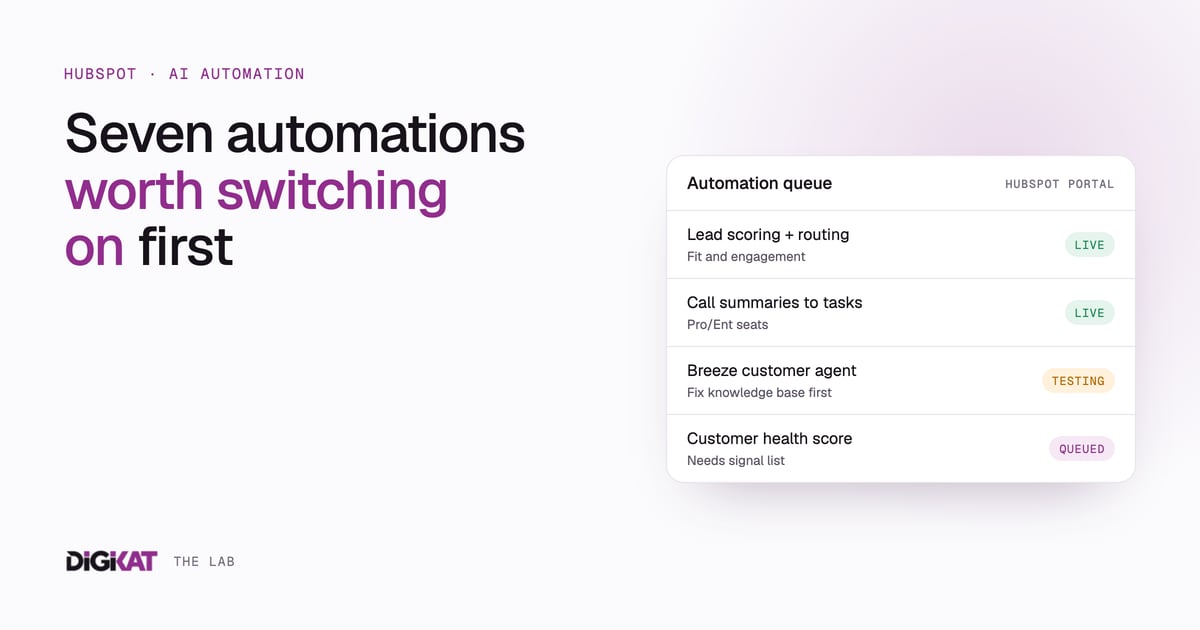
- Lead scoring and routing (#2): the quickest path to revenue impact.
- Call summaries (#3): the biggest time saver for sales.
- Enrichment and clean-up (#4): makes everything else work better.
- AI-drafted emails (#1): an easy win for marketing.
- Stalled deal alerts (#7): gives managers a better pipeline review.
- Customer health (#6): protects revenue you already have.
- Customer agent (#5): once your knowledge base is in shape.
Two rules apply to all of them. First, clean data before clever automation. Second, AI suggests, human decides for anything that affects a customer, a price or a commitment. If you want to see how we apply that in our own business, I wrote about our AI employee's human approval rules.
And when native features run out, custom agents and coded workflow actions can fill the gap. That's usually where the most useful automation lives, because it's built around your process. For the workflow foundations underneath all of this, see the 5 HubSpot workflows that replace 20 hours of manual work.
Need help setting this up?
If you'd like these running in your portal, or you want an AI agent built around a process HubSpot can't handle on its own, see how we build AI agents for HubSpot. We'll start with one automation, prove it works, then build from there.